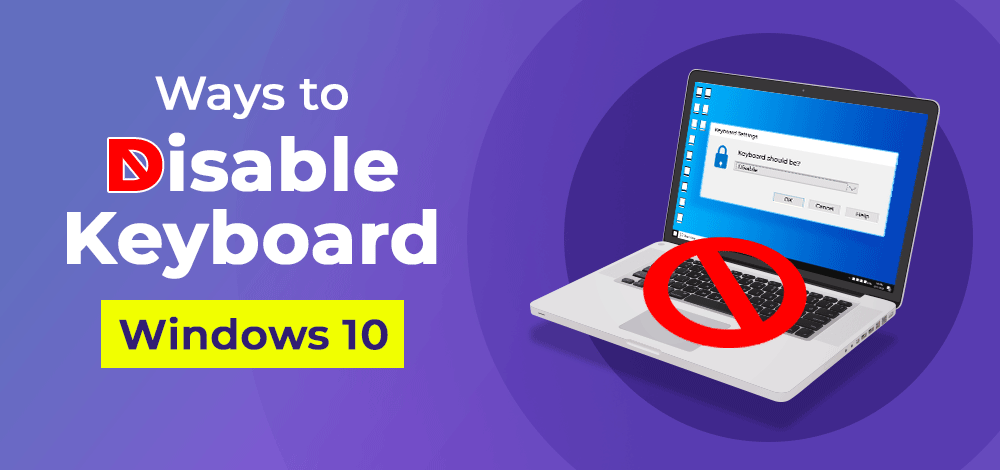
If your laptop keyboard is typing automatically, has broken keys, or you want to use an external keyboard only, disabling the internal keyboard can solve the issue quickly Disable Laptop Internal Keyboard.
In this step-by-step guide, you’ll learn how to disable your laptop’s internal keyboard using CMD (Command Prompt) in Windows 10 and Windows 11 — safely and effectively.
Why Disable the Laptop’s Internal Keyboard?
Many users search for this solution because:
-
Laptop keyboard typing random letters
-
Water-damaged or faulty keys
-
Some keys are stuck
-
Using an external USB/Bluetooth keyboard
-
Preventing accidental key presses
Instead of physically removing the keyboard, you can disable it directly from Windows using simple commands.
⚠️ Important Before You Start
Before disabling your internal keyboard:
✔ Connect an external USB keyboard
✔ Make sure you have Administrator access
✔ Follow the steps carefully
If you disable it without another keyboard connected, you won’t be able to type.
Method 1: Disable Laptop Internal Keyboard Using CMD (pnputil Method)
This is the safest and most recommended method for Windows 10 and Windows 11.
Step 1: Open Command Prompt as Administrator
-
Click Start
-
Type cmd
-
Right-click Command Prompt
-
Select Run as administrator
Step 2: Find the Internal Keyboard Device
Type the following command:
Press Enter.
You will see a list of keyboard devices. Look for:
-
Device Name (e.g., Standard PS/2 Keyboard)
-
Instance ID
Copy the Instance ID carefully.
Step 3: Disable the Keyboard
Now type:
Replace "INSTANCE_ID" with your copied device ID.
Example:
Press Enter.
If successful, Windows will confirm that the device is disabled.
How to Enable the Internal Keyboard Again
To re-enable the keyboard, run:
The keyboard will start working again immediately.
Method 2: Disable Internal Keyboard Permanently Using Service Command
This method disables the PS/2 keyboard driver service.
⚠ Works mainly on laptops using the i8042prt driver.
Disable Command
Restart your laptop after running this command.
Your internal keyboard will be disabled.
Enable Command
Restart again to restore keyboard functionality.
Which Method Should You Use?
| Method | Best For | Difficulty |
|---|---|---|
| pnputil | Most modern laptops | Easy |
| sc config i8042prt | Older PS/2 laptops | Medium |
For most users, the pnputil method is recommended.
(Whatsapp Only +9131162822)Contact Me For Online Unlocking And Remote Service Fix All Software Related Problem
Frequently Asked Questions (FAQ)
❓ Is it safe to disable the internal laptop keyboard?
Yes, it is completely safe if you have an external keyboard connected.
❓ Will Windows reinstall the driver automatically?
Sometimes Windows Update may reinstall it. If that happens, repeat the steps.
❓ Does this work on Windows 11?
Yes, this guide works on both Windows 10 and Windows 11.
Related Posts:
- Lava Yuva 5G (LXX510) Latest FRP Lock Remove File SPD | Download
- CMF Phone 2 Pro OS 4.0 Android 16 FRP Remove Flash File Stock ROM Official Firmware
- Nothing Phone 1 (OS 3.2) Latest FRP Flash File (Stock ROM)
- Nothing Phone 3a Lite FRP Flash File (Stock ROM)
- Internet Download Manager (IDM) 6.42.58 Lifetime Pre-Activated License