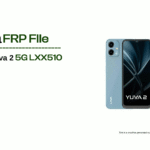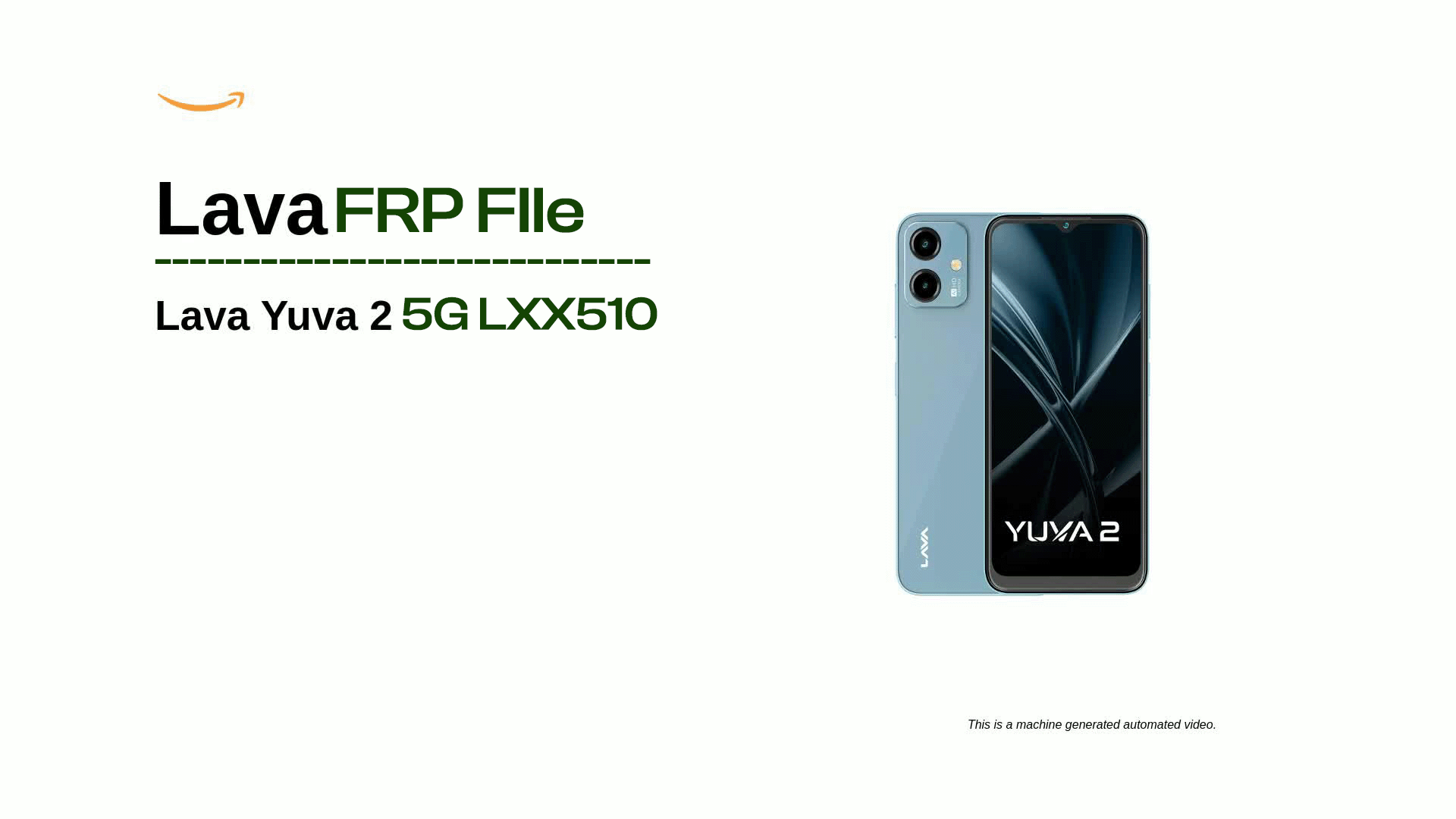
Looking for the latest FRP lock remove file for Lava Yuva 5G (LXX510) SPD? You’re at the right place! In this guide, you’ll get the official FRP remove file, download links, and step-by-step instructions to bypass or remove the Google account verification lock (FRP) on your Lava Yuva 5G SPD device.
This solution works for:
✔ FRP (Google account lock) removal
✔ Fixing FRP stuck after reset
✔ Restoring access to your device
✔ Compatible with SPD (Spreadtrum) chipset
📂 Lava Yuva 5G LXX510 Frp Lock Remove File Details
| Item | Specification |
|---|---|
| Device | Lava Yuva 5G |
| Model | LXX510 |
| Chipset | SPD (Spreadtrum) |
| File Type | FRP Remove File |
| Support | Latest Android |
| Purpose | Remove Google FRP Lock |
| Status | Official / Tested |
📥 Download Lava Yuva 5G LXX510 Frp Lock Remove File SPD
👉 Download Latest Lava Yuva 5G (LXX510) SPD FRP File
(Whatsapp Only +9131162822)Contact Me For Online Unlocking And Remote Service Fix All Software Related Problem
🛠 Required Tools Before FRP Removal
✔ Windows PC/Laptop
✔ SPD Upgrade Tool
✔ Spreadtrum Drivers Installed
✔ USB Data Cable
✔ Lava Yuva 5G LXX510 FRP File
🔓 How to Remove Lava Yuva 5G LXX510 Frp Lock
Follow these steps carefully:
🧩 Step 1: Install SPD Drivers
Install the Spreadtrum/Unisoc drivers on your computer so the PC can detect your device.
🧩 Step 2: Extract FRP File
Extract the downloaded FRP remove file and SPD tool package on your PC.
🧩 Step 3: Open the SPD Upgrade Tool
Launch the SPD Upgrade Tool as Administrator.
🧩 Step 4: Load the FRP Remove File
Click on Load Pack or Choose Firmware and select the extracted FRP removal file.
🧩 Step 5: Connect the Device
• Power off your Lava Yuva 5G
• Hold Volume Down/Up (as required)
• Connect the phone to PC using USB cable
🧩 Step 6: Start FRP Unlock
Click Start or Download in the SPD tool.
Wait for the process to complete.
🧩 Step 7: Reboot Device
Once done, disconnect and reboot your phone.
FRP lock should now be removed.
⚠️ Important Tips Before You Begin
🔹 Backup important data (if possible)
🔹 Charge the phone above 50%
🔹 Use original USB cable
🔹 Do not interrupt the flashing process
❓ Quick FAQ
Q: Will this file erase my data?
In most cases, FRP removal may erase your data. Therefore, it is strongly recommended to create a backup before starting the process. If a backup is not possible, be prepared for possible data loss.
Q: Is this method safe?
Yes, the process is safe if you use official or verified files. However, using the wrong file can damage your device. For this reason, always double-check the model number before flashing.
Q: My phone is not detecting on PC — what should I do?
First, reinstall the Spreadtrum/Unisoc USB drivers. Then, restart your computer and reconnect the device. If the issue continues, try using a different USB cable or USB port.
Related Post :
- Lava Yuva 5G (LXX510) Latest FRP Lock Remove File SPD | Download
- CMF Phone 2 Pro OS 4.0 Android 16 FRP Remove Flash File Stock ROM Official Firmware
- Nothing Phone 1 (OS 3.2) Latest FRP Flash File (Stock ROM)
- Nothing Phone 3a Lite FRP Flash File (Stock ROM)
- Internet Download Manager (IDM) 6.42.58 Lifetime Pre-Activated License
- Ai+ Pulse 1 Latest FRP Lock Remove (official Flash File) Stock Rom
- Nothing Phone 3 Latest (4.0 OS) FRP Remove Flash File (Android 16)
- Nothing Phone 2a Plus FRP Remove Flash File (Stock ROM OS 4.0)